Mortal Shell 2 Players Are Changing These Console Settings — And It Could Make Combat Feel Completely Different
MORTAL SHELL 2 PLAYERS: CHANGE THESE SETTINGS BEFORE THE GAME CHANGES YOU. 😳
Some default options are quietly steering your attacks, snapping your aim and even putting you in danger — and players are only now realizing what’s happening… So which settings should you turn OFF, and which ones should you change immediately? 👀
Here’s the console setup that can make Mortal Shell 2 feel completely different. 👇
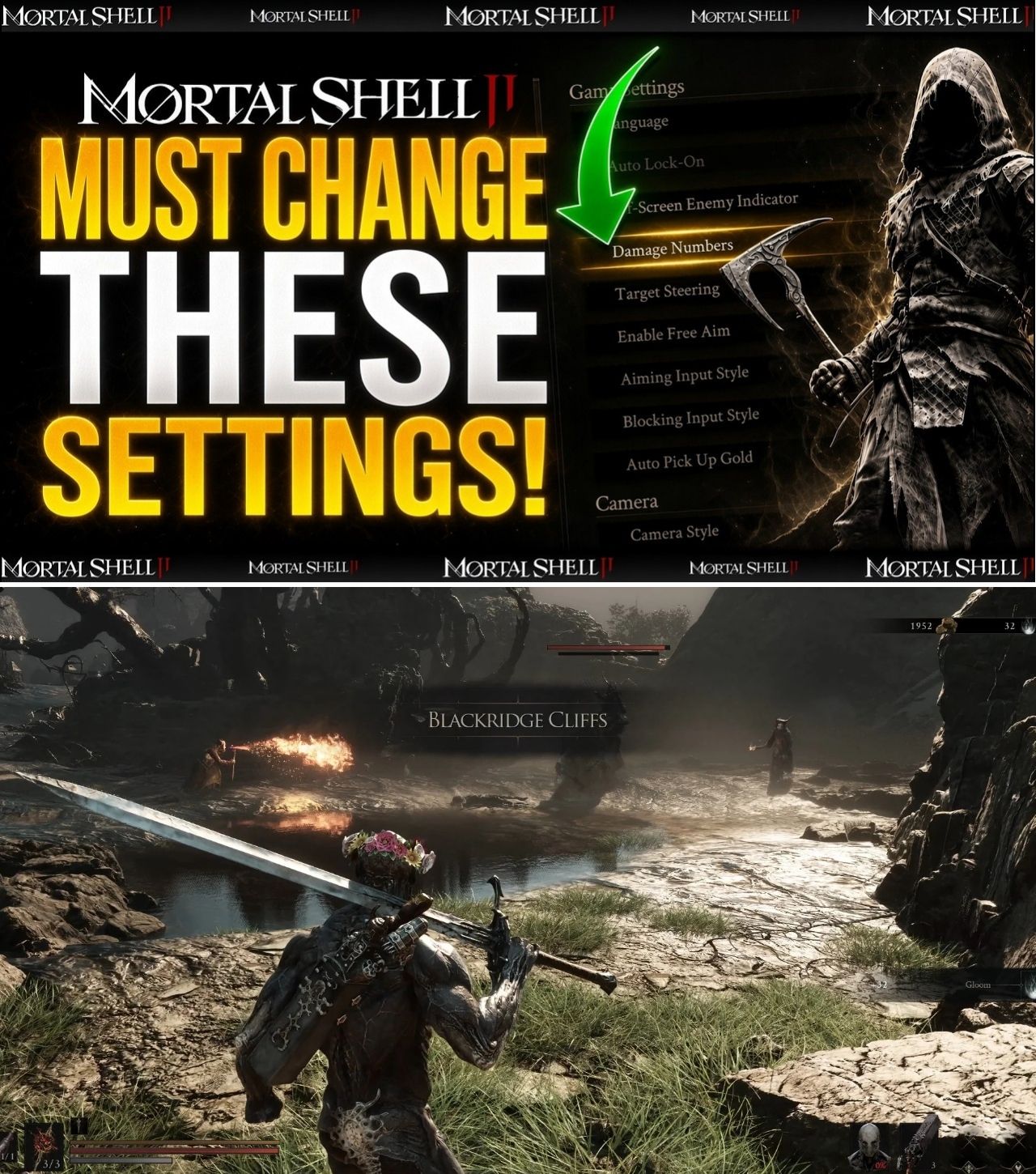
Mortal Shell II has only been out for a matter of days, but players are already discovering that some of the game’s default settings can have a surprisingly large impact on how combat feels.
For PlayStation 5 and Xbox Series X|S players in particular, several options hidden in the game’s settings menu can influence targeting, camera positioning, aiming and even the way players collect Gold. As more players experiment with those options, a simple recommendation is beginning to emerge: don’t assume the default configuration is the best way to play.
The issue has become particularly noticeable around Target Steering and Enable Free Aim. Community discussion has highlighted situations in which attacks or shots can be pulled toward nearby targets, occasionally producing results players did not intend. A Reddit player recently posted footage illustrating a particularly unfortunate example, prompting wider discussion about Mortal Shell II’s targeting behavior.
For console players preparing to start — or restart — their journey, a handful of settings are therefore worth checking before getting too deep into the game.
The setting causing the most discussion: Target Steering
One of the most important options is Target Steering, found under the game’s Game settings.
The default option is Default, which gives melee attacks a stronger tendency to prioritize nearby enemies in the direction the player is facing. Under normal circumstances, that behavior can be helpful: it can make attacks connect more reliably and prevent swings from simply missing an enemy standing close to the player.
But there is another side to the system.
Players have reported situations in which this targeting assistance becomes too aggressive, effectively pulling an attack toward an unintended enemy or environmental hazard. That can be especially problematic in encounters where explosive objects, traps or multiple enemies are positioned close together.
Recent coverage of the issue recommends experimenting with Target Steering — Light or Off if the default behavior feels too sticky.
That does not necessarily mean every player should immediately disable the feature. For newer players, some degree of targeting assistance may actually make combat easier. The more important point is that players should understand what the setting does rather than assuming that the default configuration represents the optimal choice.
For experienced Soulslike players who prefer precise control over attack direction, Light may be a useful middle ground.
Enable Free Aim is another major change
The second setting receiving significant attention is Enable Free Aim.
With the option disabled, the game’s ranged targeting behavior can automatically pull the reticle toward nearby enemies. That can be convenient when the player simply wants to fire at a target without manually lining up every shot.
However, it can also create problems when the player is attempting to shoot something specific.
Turning Enable Free Aim to Yes gives players greater direct control over where their sidearm is aimed. According to recent reporting, players can still use the right trigger to lock onto targets when Free Aim is enabled, meaning the setting does not necessarily require players to abandon target locking altogether.
That makes Free Aim particularly interesting for players who want both options: manual precision when they need it and target locking when a fight becomes more chaotic.
The recommendation has also gained traction because of community reports involving unintended targeting. One Reddit post about weapon tracking became a reference point for subsequent coverage of the issue, with players discussing how the game’s targeting system could sometimes turn an otherwise normal attack into a dangerous mistake.
Auto Pick Up Gold is an easy quality-of-life upgrade
Not every useful setting is about combat.
Auto Pick Up Gold is another option players may want to activate immediately.
Gold is a frequently encountered resource, and manually interacting with every pickup can quickly become repetitive. Setting the option to Yes removes that additional interaction in situations where the game can automatically collect the resource.
It is a small change, but arguably one of the easiest recommendations to make because it does not fundamentally alter the combat system. It simply reduces unnecessary controller inputs.
Recent guides and coverage of the game’s settings have independently highlighted Auto Pick Up Gold as one of the first options worth changing.
There is one caveat from the community, however: some players have reported that automatic pickup does not appear to work consistently in every situation, particularly with certain fixed-position Gold pickups. So players should not necessarily expect every piece of Gold in the environment to behave identically.
Camera Style: Action or Immersive?
Another deceptively important setting is Camera Style.
Mortal Shell II offers Immersive and Action camera styles, and the difference can be immediately noticeable.
The Action setting pulls the camera farther away from the character, providing a wider view of the surrounding environment. For combat-heavy gameplay, that additional visibility can be valuable because enemies are less likely to disappear outside the immediate camera area. Recent guides have therefore recommended Action as a strong choice for players who want better situational awareness.
The alternative is Immersive, which keeps the camera closer and can provide a more intimate presentation.
This is ultimately a preference rather than a universal rule.
Players who prioritize atmosphere may prefer Immersive. Players who care more about battlefield awareness may find Action more useful.
For a Soulslike, however, being able to see an incoming enemy can be considerably more valuable than having a slightly more cinematic camera.
Controller sensitivity may be another issue
The conversation becomes more complicated when controller sensitivity enters the picture.
Several players have complained that the camera can feel unusually fast vertically compared with its horizontal movement. A Steam Community discussion about controller sensitivity attracted multiple players reporting that the vertical camera movement felt disproportionately sensitive.
Importantly, a developer responded to the discussion by pointing players toward the available Controller Sensitivity, Overall Camera Shake, and Sprint Camera Shake settings.
Community members subsequently continued testing the issue and reported that lowering overall controller sensitivity could help, although doing so could also make horizontal movement feel unnecessarily slow.
That distinction matters.
There is currently a difference between saying “the game has a confirmed controller setting that fixes vertical sensitivity” and saying “players are reporting that the default controller sensitivity feels unbalanced.”
The latter is supported by the current community discussion. The former is not something console players should assume.
Some PC users have experimented with configuration-file changes to independently modify pitch sensitivity, but those are PC-specific workarounds and should not be presented as a normal PlayStation or Xbox solution.
For console players, the sensible approach is therefore to start with the in-game Controller Sensitivity setting and adjust gradually rather than blindly copying a PC configuration tweak.
A practical console setup
Taking the current recommendations and community feedback together, a sensible starting configuration for a player who prioritizes combat control would look something like this:
Target Steering: Light or Off
Enable Free Aim: Yes
Auto Pick Up Gold: Yes
Camera Style: Action
For Controller Sensitivity, there is no single universally correct value. Players experiencing an overly fast camera should experiment with a lower value, while players who find the camera sluggish can move upward.
That is an important distinction from settings such as Auto Pick Up Gold, where the benefit is relatively straightforward.
Settings are ultimately personal, and Mortal Shell II’s combat system makes that especially relevant. A player who wants maximum targeting assistance may prefer Default Target Steering and automatic aiming. Someone accustomed to Soulslike combat may instead find those systems restrictive.
Why these settings matter more than they might seem
Mortal Shell II does not simply ask players to memorize enemy attack patterns. Its combat system combines deliberate attacks, dodging, defensive mechanics and a variety of equipment systems. That means consistency in controller input can directly influence how combat feels.
Recent reviews have emphasized that the sequel removes the traditional stamina bar, allowing players to attack and dodge without waiting for stamina to regenerate. At the same time, attacks cannot simply be canceled at will, making commitment and positioning important.
That makes camera behavior and targeting particularly relevant.
If the camera moves differently from what a player expects, or an attack is redirected toward an unintended target, the resulting mistake can feel like a combat failure even when the player’s original input was reasonable.
This is why the current discussion around settings is less about finding a magical “easy mode” and more about making the game’s controls behave in a way that matches the player’s preferred style.
The bigger picture after launch
It is also worth remembering that Mortal Shell II is still extremely new.
The game launched on PC, PlayStation 5 and Xbox Series X|S on August 20, 2026, and the first wave of community feedback is only now beginning to identify issues that may not have been obvious during earlier testing.
That means recommendations can change.
Players should also distinguish between genuine gameplay options and temporary launch issues. A setting that feels necessary today could become less important after a future update, while controller problems or targeting behavior could potentially be adjusted by the developer.
For now, however, the evidence points toward a fairly simple conclusion: console players should not be afraid to leave the default settings behind.
If attacks feel strangely sticky, start with Target Steering. If ranged weapons keep snapping toward targets you did not intend to shoot, try Enable Free Aim. If collecting Gold becomes repetitive, turn on Auto Pick Up Gold. And if the camera feels too close during combat, give Action camera mode a try.
None of these settings guarantees a better experience for every player.
But with Mortal Shell II’s combat built around precision, positioning and split-second decisions, finding a configuration that makes the controls predictable may be one of the easiest improvements players can make before blaming themselves for the next death.