How To Fix The Two Biggest Issues In The Blood Of Dawnwalker Right Now
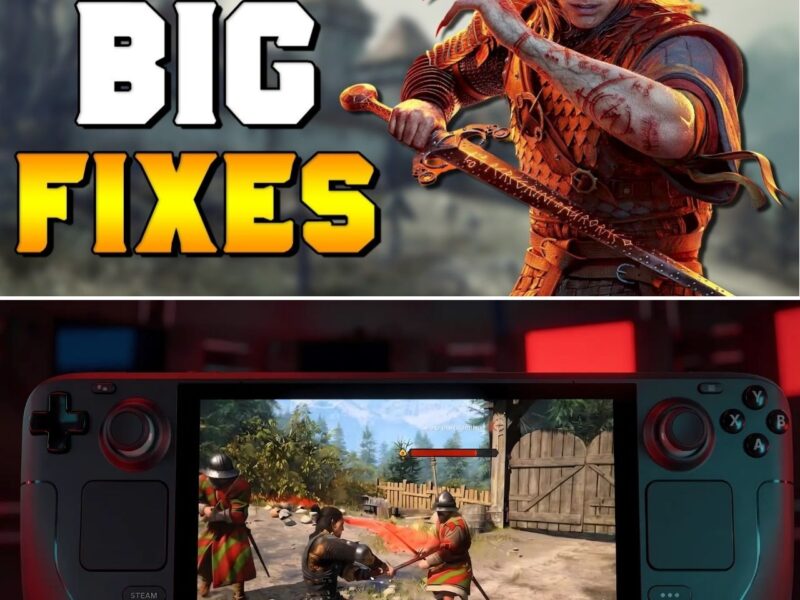
BLOOD OF DAWNWALKER HAS 2 BIG PROBLEMS… AND THERE ARE FIXES 👀
Just started playing and getting random stutters or having Coen suddenly stop sprinting?
You’re not imagining it.
Rebel Wolves has already acknowledged some of the biggest technical complaints — and there are a couple of surprisingly simple workarounds that can make the game feel MUCH better right now.
One setting can make a major difference on PC.
Another trick is specifically useful if you’re playing with a controller.
And the crazy part? The official hotfix is already out, but these problems still haven’t been completely solved.
So what should you change?
And which “fixes” actually work instead of wasting your time?
👇 Here’s how to fix the two biggest Dawnwalker problems right now.
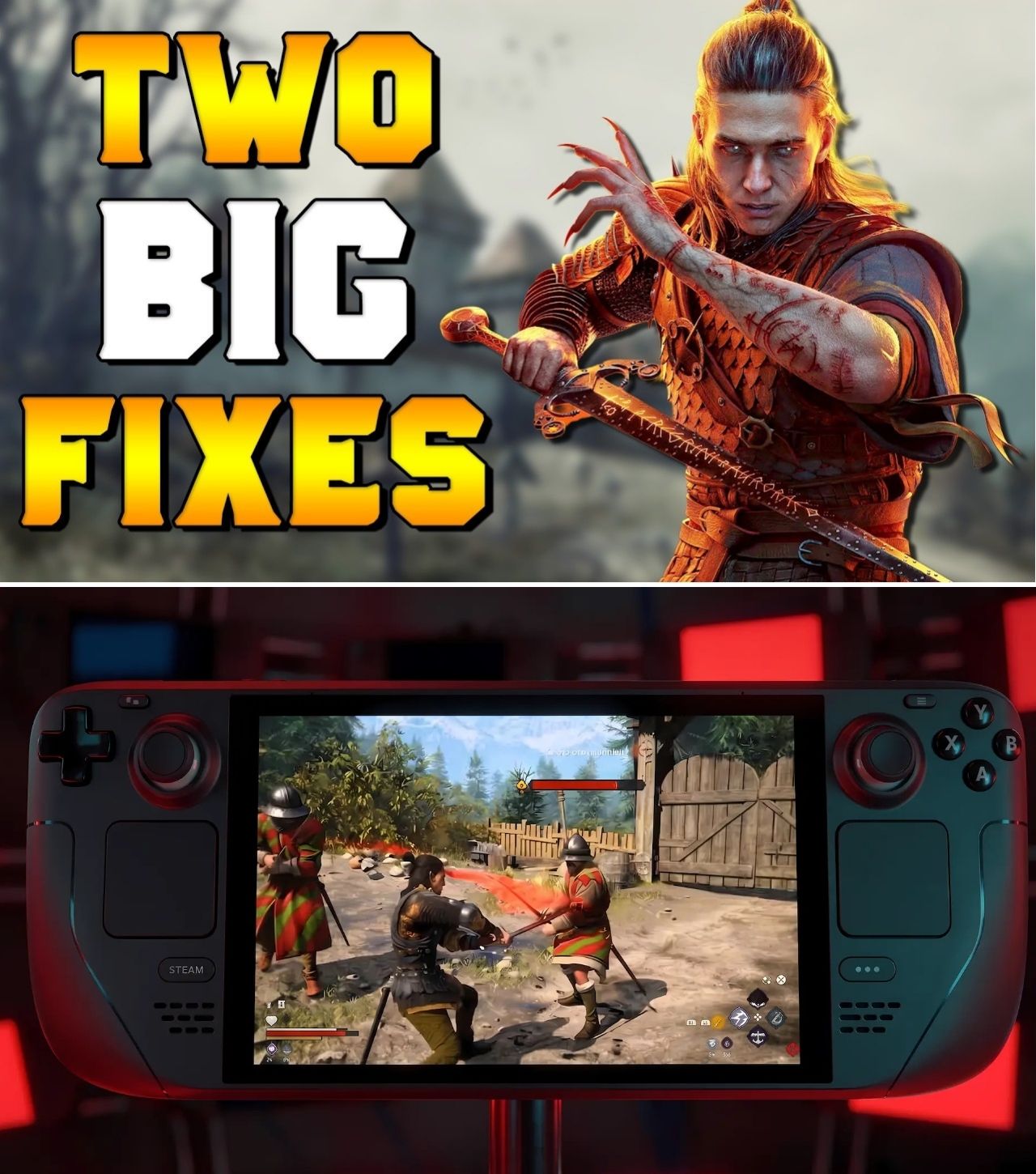
How To Fix The Two Biggest Issues In The Blood Of Dawnwalker Right Now
The Blood of Dawnwalker has finally arrived, and the early reception suggests Rebel Wolves has delivered a much more ambitious RPG than its relatively small studio size might have implied.
But alongside the praise for its dark fantasy world, combat and unusual time-management system, launch players have also encountered a handful of technical problems.
The most frustrating part is that some of these issues are not necessarily caused by weak hardware.
Rebel Wolves has already acknowledged several problems affecting players, including stuttering in Windowed or Borderless mode, crashes during shader compilation, missing button-remapping options for PS5 controllers and sprinting problems when changing direction with a gamepad.
The good news is that players don’t necessarily have to wait for another major patch to improve every issue.
Some problems already have official workarounds.
And one of them requires nothing more complicated than changing a display setting.
Issue No. 1: Stuttering In Windowed And Borderless Mode
For PC players, one of the most noticeable problems is intermittent stuttering when The Blood of Dawnwalker is running in Windowed or Borderless mode.
This is particularly frustrating because Borderless mode is normally the preferred option for many PC gamers.
It makes switching between applications easier, works naturally with modern desktop setups and generally feels more convenient than exclusive fullscreen.
Unfortunately, Dawnwalker currently has a specific problem with those modes.
Rebel Wolves has officially acknowledged the issue and recommends launching the game in Full Screen instead.
The workaround is simple
Go into the game’s display settings and change the display mode from:
Windowed / Borderless → Full Screen
Then restart the game if necessary.
That’s it.
It isn’t a permanent technical fix, but it can reduce or eliminate the particular stuttering behavior associated with Windowed and Borderless modes.
And importantly, this isn’t merely a random community suggestion.
It’s the workaround provided by the developers themselves.
Why Does Full Screen Help?
The exact technical reason can vary depending on a player’s hardware and Windows configuration.
But the important thing for players right now is that Rebel Wolves has identified Windowed and Borderless operation as a known source of stuttering.
The developers are continuing to work on the underlying issue, meaning Full Screen should be viewed as a temporary workaround rather than a final solution.
That distinction matters.
Players shouldn’t assume that their PC is suddenly “fixed” simply because Full Screen improves the experience.
The game itself still needs an update that properly addresses the underlying behavior.
Issue No. 2: Coen Suddenly Stops Sprinting With A Controller
The second major annoyance is considerably different.
Some players using a gamepad have reported that Coen’s sprint can stop when they change direction.
In a game where movement is such an important part of exploration, this can become incredibly irritating.
You’re running toward a location.
You adjust your direction.
Suddenly Coen slows down or stops sprinting.
Then you have to trigger sprint again.
It might sound minor on paper, but repeated throughout a long play session, it can make movement feel considerably less responsive.
Rebel Wolves has acknowledged the problem and said it is working on a fix. In the meantime, the developer recommends reducing controller sensitivity from 1.0 to 0.8 in the relevant console settings.
That’s the temporary solution players should try first.
The Hotfix Has Already Arrived
There is an important update here because the situation has already changed since launch.
Rebel Wolves released Hotfix 1.0.2 on September 3.
The update addressed several problems, including a quest issue involving Farkas, a tutorial issue involving Lunka and a blacksmith issue involving Uriashi. It also included PC-only adjustments to controller dead zones and input behavior while sprinting.
That means players downloading the game today should make sure they’re running the latest version.
However, Hotfix 1.0.2 does not mean every technical problem has disappeared.
The developers’ own patch notes still list Windowed/Borderless stuttering and shader-compilation crashes among known issues. Missing PS5 gamepad button mapping is also still being worked on.
In other words:
Update the game first. Then apply the appropriate workaround if the problem remains.
What About Shader-Compilation Crashes?
This is arguably the most serious of the current PC problems because, unlike a small movement annoyance, it can prevent players from properly launching the game.
Rebel Wolves has acknowledged crashes occurring during shader compilation.
The developer’s current recommendation is to check whether the system BIOS is up to date.
This issue is particularly relevant to systems using affected Intel CPUs and is connected to interactions involving Oodle and Unreal Engine technology. Kotaku notes that Intel had previously identified the underlying processor/BIOS-related issue.
So if the game crashes during shader compilation before you can even properly begin playing, checking for a motherboard BIOS update may be much more useful than repeatedly reinstalling the game.
Of course, BIOS updates should be performed carefully and according to the motherboard manufacturer’s instructions.
Don’t Confuse A Workaround With A Performance Upgrade
There’s another important point for PC players.
Switching to Full Screen is not necessarily going to increase your average FPS dramatically.
That’s not what the workaround is intended to do.
The goal is to address the particular stuttering behavior associated with Windowed and Borderless modes.
Likewise, reducing controller sensitivity isn’t magically improving the game’s frame rate.
It’s a temporary way of reducing the likelihood of the sprint-direction problem occurring.
This distinction is important because launch-day discussions can quickly turn into a mixture of different issues.
Low FPS, traversal stutter, shader compilation crashes, controller input problems and ordinary frame-time spikes are not necessarily the same problem.
Each can require a different solution.
What PC Players Should Do Right Now
If you’re playing The Blood of Dawnwalker on PC and experiencing problems, the simplest approach is to work through the known issues systematically.
First, update the game.
Hotfix 1.0.2 has already been released and contains several fixes, including controller input adjustments.
Second, use Full Screen.
If you’re experiencing the specific stuttering associated with Windowed or Borderless mode, this is the official workaround.
Third, check your BIOS if the game crashes during shader compilation.
Don’t immediately assume that the GPU or game installation is defective.
Fourth, if you’re using a controller and sprint keeps breaking when you change direction, try reducing sensitivity from 1.0 to 0.8.
And finally, remember that some problems are still officially under investigation.
There may not yet be a perfect fix available.
The Launch Is Rough — But The Response Has Been Fast
The technical problems are certainly frustrating, but there is another side to the story.
Rebel Wolves responded quickly after launch.
Hotfix 1.0.2 arrived within roughly a day of release and addressed multiple quest and gameplay problems.
That doesn’t erase the remaining issues.
But it does show that the studio is actively monitoring the launch rather than leaving players waiting indefinitely.
The developers have also publicly acknowledged the known problems and provided workarounds instead of pretending they don’t exist.
For a newly released Unreal Engine 5 RPG of this scale, that distinction matters.
Should You Stop Playing Until Everything Is Fixed?
For most players, probably not.
If your game is running normally, there’s no reason to stop.
If you’re experiencing the Windowed/Borderless stutter, switching to Full Screen is currently the easiest thing to try.
If you’re experiencing controller sprint problems, the sensitivity workaround may help while the permanent fix is being developed.
And if you’re dealing with shader-compilation crashes, checking the BIOS is the developer-recommended first step.
The bigger question is whether these problems are temporary launch turbulence or signs of deeper optimization problems.
That’s something only future patches — and continued player testing — will answer.
Early reporting is already mixed: some high-end PC configurations are performing well, while other players are reporting stuttering and crashes. That suggests the experience can vary considerably depending on hardware and configuration rather than there being one universal performance profile.
The Two Fixes To Remember
For players who simply want the short version, there are two immediate changes worth remembering.
Experiencing stuttering in Windowed or Borderless mode?
Switch to Full Screen.
Coen keeps stopping his sprint when you change direction with a controller?
Try reducing controller sensitivity from 1.0 to 0.8 while waiting for the permanent fix.
And if you’re crashing during shader compilation, check your BIOS.
None of these solutions should be considered permanent fixes. They are workarounds while Rebel Wolves continues improving the game.
But for anyone trying to enjoy The Blood of Dawnwalker right now, they could make the difference between fighting vampires and fighting the settings menu.
The game itself may be ready for the adventure.
Your PC just might need a little help getting there.