Optimize Your Adventure: 8 Settings That Transform AC Black Flag Resynced
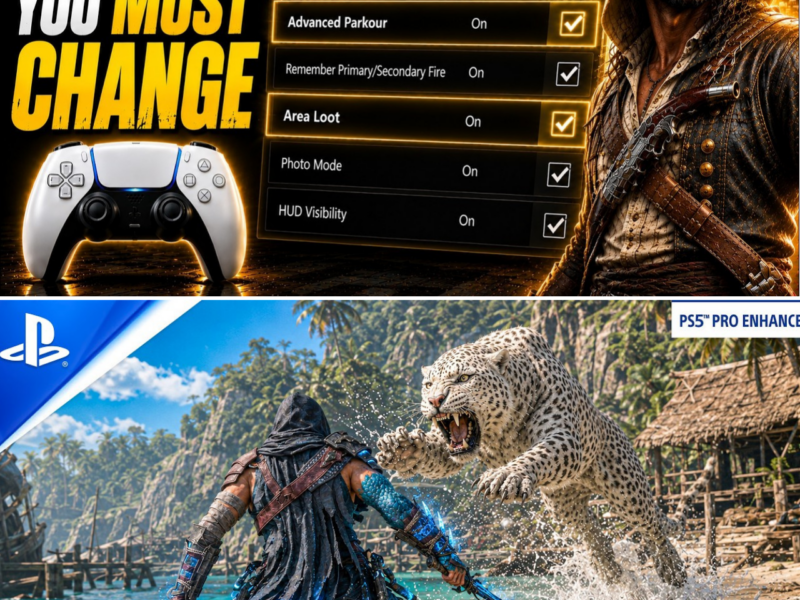
Stop playing AC Black Flag Resynced with the default settings! 🛑🎮
Are you feeling frustrated by clunky movement, blurry camera effects, or annoying HUD clutter? You’re not alone—and it’s entirely the game’s fault. Most players are diving into Assassin’s Creed Black Flag Resynced without realizing that the “default” experience is actually holding you back from a truly fluid, modern pirate adventure.
We’ve identified the 8 critical settings that will transform your gameplay overnight—from fixing that cramped Field of View to enabling “Area Looting” so you don’t waste hours picking up items one by one. Don’t let default settings ruin your Caribbean dream.
Want to sharpen your visuals, master your movement, and clear the screen for maximum immersion? Click the link to optimize your game before you take another step! 👇
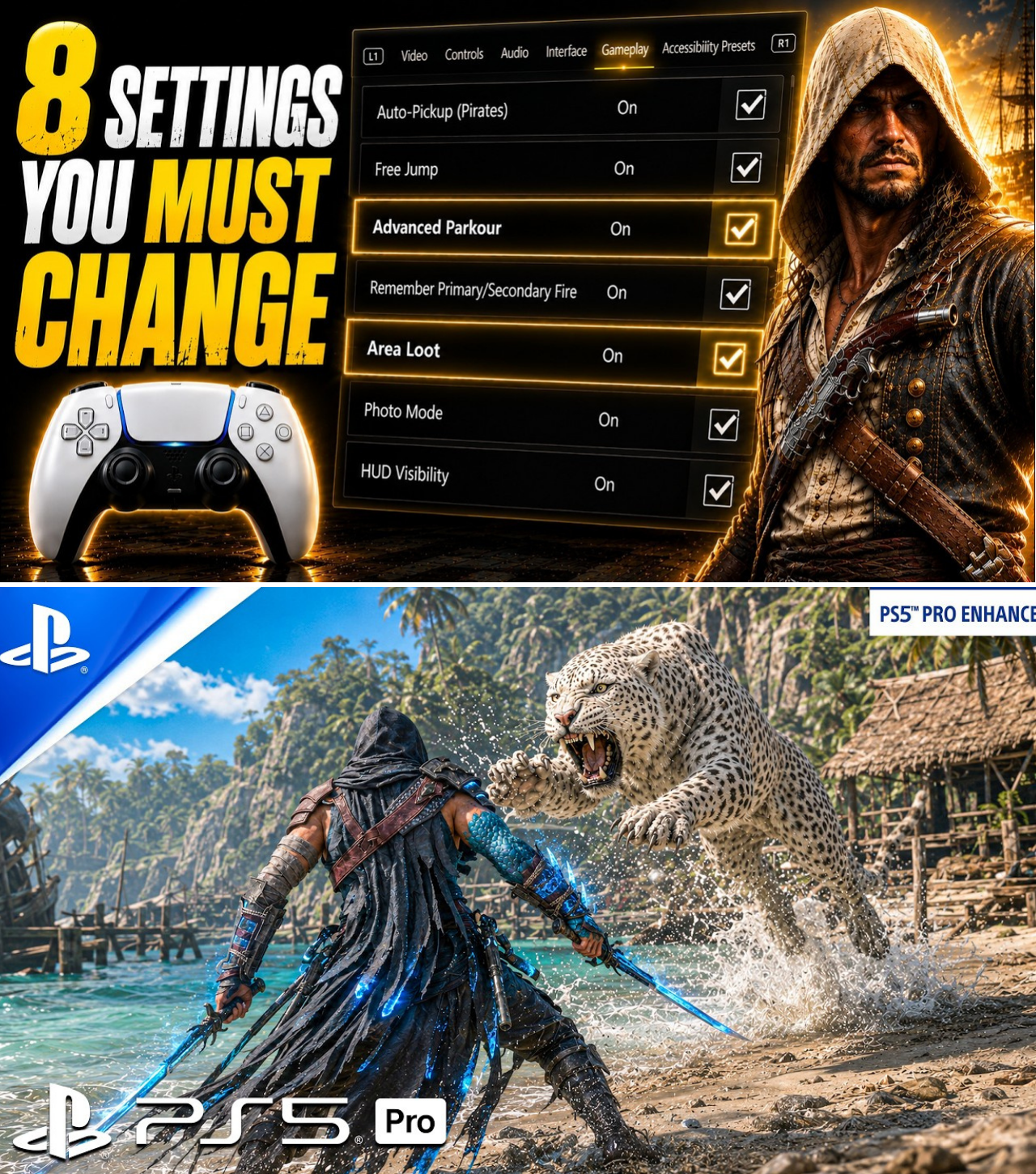
In the excitement of returning to the Caribbean, many players in Assassin’s Creed Black Flag Resynced make the mistake of leaving the default configuration untouched. While functional, these settings often reflect design philosophies from 2013 that don’t quite mesh with the speed and precision of modern gameplay. By adjusting just eight key parameters, you can significantly improve your immersion, combat efficacy, and exploration speed.
1. Area Looting
By default, Edward stops to manually loot every single guard—a tedious process after large-scale boarding actions. Enable “Area Looting” in the Gameplay settings to harvest resources from multiple bodies simultaneously, keeping the pace of battle fast and fluid.
2. Field of View (FOV)
The default FOV can feel cramped, limiting your peripheral awareness in combat and making the world seem smaller than it is. Increase your FOV in the Graphics settings to broaden your perspective. It’s a minor visual tweak that makes exploration feel significantly more expansive.
3. HUD Toggle
The constant presence of the HUD can break immersion, especially when navigating the stunning vistas of the Caribbean. Enabling the “HUD Toggle” allows the interface to disappear during exploration, reappearing only when combat or interaction requires it. This simple change dramatically enhances the game’s cinematic quality.
4. Aim Assist (Controller Only)
For players utilizing controllers, enabling Aim Assist is essential for maintaining accuracy during high-speed naval and land combat. Without it, the manual adjustment can feel sluggish against rapidly moving targets.
5. Unlimited Oxygen
If the underwater segments feel like a chore due to constant drowning risks, “Unlimited Oxygen” is your best friend. It allows you to explore shipwrecks at your own pace, turning stressful time-trials into rewarding treasure hunts.
6. Advanced Parkour
Climbing feels “restrictive” when this setting is off. Enabling “Advanced Parkour” allows for more consistent free-running, side-eject maneuvers, and smarter pathfinding. It is arguably the most important setting for anyone looking to navigate rooftops with the grace of an Assassin.
7. Disable Motion Blur
Modern eyes are less tolerant of the heavy motion blur used in 2013-era games. Disabling this in the Graphics settings will instantly sharpen your visuals during camera movement, making it much easier to track enemies and scenery while in motion.
8. Disable Camera Shake
While intended to provide cinematic impact, camera shake can be a major source of visual fatigue, particularly during intense naval explosions or melee combat. Turning this off provides a much steadier, clearer view of the action, allowing you to focus on timing your counters and dodges.
Conclusion: Experience the Difference
These adjustments aren’t “cheats”; they are tools to modernize a classic. By removing the friction points that defined the original release, players can focus on what Resynced does best: delivering a seamless, high-seas pirate experience. Before you spend another hour in the Caribbean, take a moment to hit the pause menu and refine your game—you’ll be surprised by how much better it feels.