Squeezing Every Frame: The Definitive Performance Optimization Guide for Assassin’s Creed Black Flag Resynced
FPS DROP? FIX IT NOW! THE ULTIMATE OPTIMIZATION GUIDE FOR ASSASSIN’S CREED BLACK FLAG RESYNCED! 🖥️🚀
Is your PC struggling to handle the beauty of the Caribbean? You aren’t alone! Many players are reporting massive frame rate drops, but the secret to getting a 120% performance boost is finally here—and you won’t believe how simple it is!
Stop wasting your GPU’s potential on “Ultra” settings that look identical to “High.” We’ve decoded every single graphics option to help you squeeze out maximum FPS, lower your VRAM usage by up to 2GB, and keep your game buttery smooth—even on mid-range hardware!
Don’t let lag ruin your legendary pirate journey. 👉 Get the best optimized settings here:
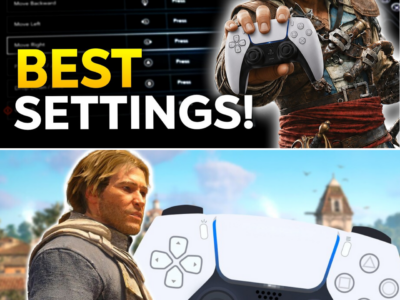
Assassin’s Creed Black Flag Resynced has arrived, and while the visual fidelity of the Caribbean is breathtaking, it comes with a high performance cost. As PC players scramble to find the “sweet spot” between visual quality and frame rate, a consensus is building around a set of optimized settings that can significantly improve stability without sacrificing the game’s atmosphere.
Breaking Down the Performance Bottlenecks
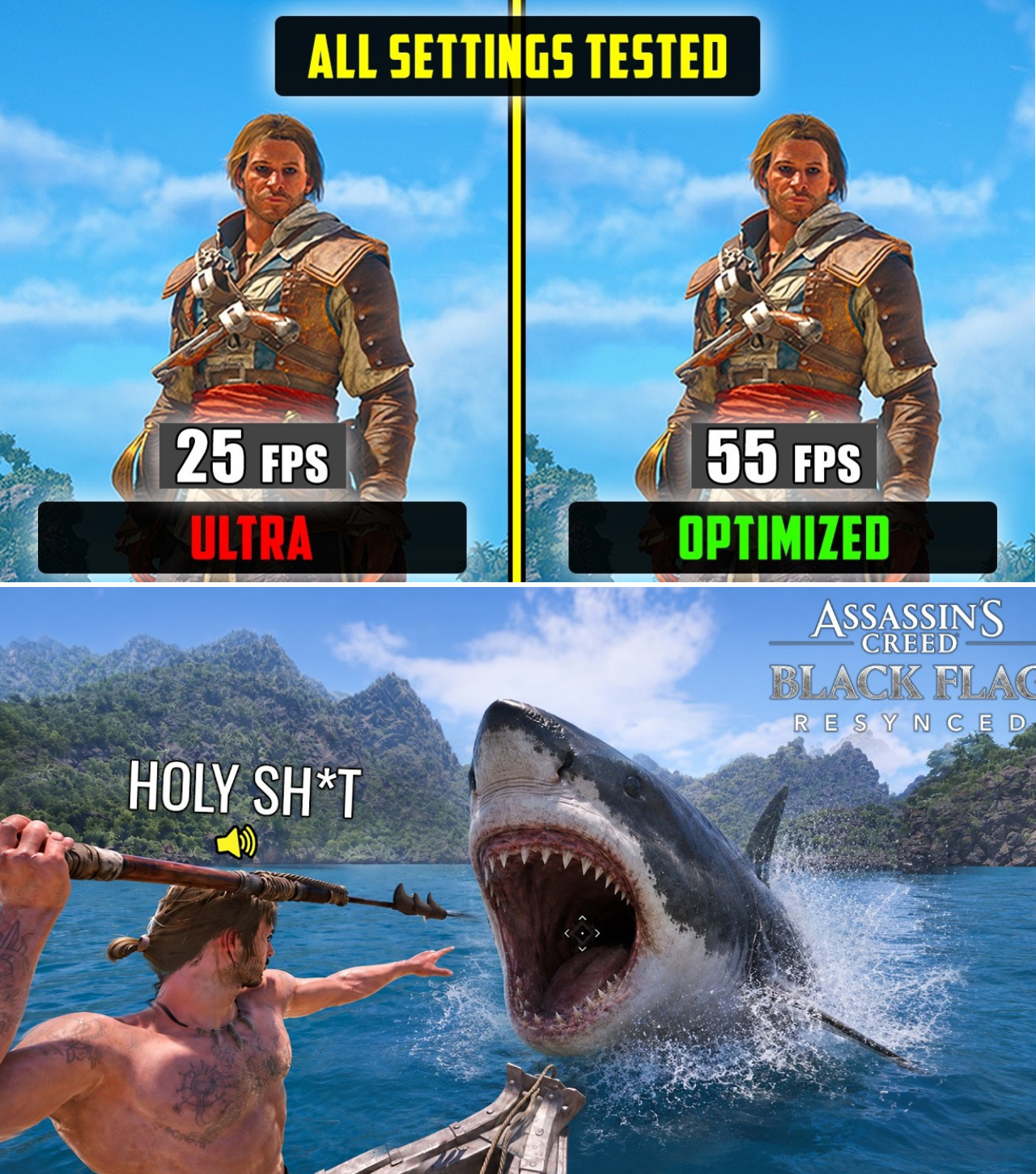
Testing conducted by the community indicates that the game is surprisingly well-optimized, provided that players avoid “Ultra” overkill settings where the visual return on investment is negligible. According to recent benchmarks, optimizing your settings can lead to a performance increase of over 100% while simultaneously reducing VRAM consumption by nearly 2GB [00:09].
Recommended Optimized Settings
For those looking to achieve a stable 60 FPS, even on modest hardware, the following adjustments are recommended:
Upscaling: Use DLSS Quality if your hardware supports it. For AMD or non-RTX users, FSR or TAA Quality are highly comparable alternatives [01:53].
Ray Tracing: While beautiful, it is a significant performance hog. It is recommended to disable it initially and only enable it if you have spare performance overhead [02:59]. If you choose to use it, keep it at Medium [03:29].
Character & Hair Quality: Set Character Quality to High to avoid noticeable NPC popping [04:50] and Hair Strands to Medium for the best balance between visual detail and frame rate [05:36].
Shadows & Lighting: Set Shadow Quality to High [11:52] and Light Source Quality to Medium to avoid the performance penalties associated with higher-tier shadow casting [10:51].
Environment & Water: Use Medium for Water Quality [07:01] and High for Fog Quality [12:33] to maintain atmosphere without sacrificing fluid performance.
The Power of Micro-Polygon Management
One of the most critical settings in Black Flag Resynced is Micro-Polygon. Functioning similarly to Unreal Engine’s Nanite technology, it controls the quality of meshes at varying distances. Players should avoid Low or Medium settings at all costs to prevent distracting “camera pop-in” [09:15]. Setting this to Very High is recommended as it effectively eliminates these visual artifacts with minimal performance cost [09:23].
Final Thoughts on Hardware Compatibility
The game’s VRAM usage is a key concern for owners of 8GB GPUs. By utilizing these optimized settings, players have reported a significant drop in VRAM consumption, allowing for a smooth experience even in the game’s most demanding scenes [15:13].
While there are many settings to choose from, the key to a better experience lies in understanding which options provide visual parity with their higher-tier counterparts. By following these benchmarks, you can enjoy the Caribbean at its absolute best.
For a full, visual walkthrough of these settings and side-by-side performance comparisons, check out the complete guide here: